Microsoft Information Protection (MIP) - documents protected with sensitivity labels
Documents stored on SharePoint Online can be protected with sensitivity labels that encrypt them (Microsoft Information Protection / Microsoft Purview). ReplaceMagic can process such documents: it decrypts the document, makes the replacements and encrypts it again with the same protection before saving it back to SharePoint. The label and the protection of the document stay as they were.
MIP processing is available for Word, Excel and PowerPoint documents (.docx, .xlsx, .pptx).
1. App registration in Microsoft Entra ID (Azure)
ReplaceMagic signs in to MIP with its own app registration. The Application (client) ID of this app is entered in the SharePoint connection window in the field MIP Application ID, together with the MIP Tenant ID and the e-mail address of the user (MIP Identity). This app can be the same app that is used for the SharePoint connection or a separate app - ReplaceMagic always uses the app entered in MIP Application ID for MIP.
Settings of the app registration:
- Supported account types: "Accounts in this organizational directory only" (single tenant) is sufficient for documents protected in your own organization.
- Authentication: platform "Mobile and desktop applications" with the redirect URI https://login.microsoftonline.com/common/oauth2/nativeclient.
- API permissions (see the table below) with "Grant admin consent for <your organization>" - all permissions must show the status "Granted".
2. Required API permissions
Sign-in with a user account (delegated - the standard ReplaceMagic MIP sign-in):

SharePoint access (in the app used for the SharePoint connection - it can be the same app):

Sign-in without a user (app-only): additionally the application permissions Content.SuperUser (Azure Rights Management Services) and UnifiedPolicy.Tenant.Read (Microsoft Information Protection Sync Service) are required, with admin consent. The Microsoft Graph application permissions InformationProtectionPolicy.Read.All, InformationProtectionConfig.Read.All, InformationProtectionContent.Write.All and InformationProtectionContent.Sign.All may be added as well; they are not needed for the delegated sign-in.
If "Microsoft Information Protection Sync Service" cannot be found under "APIs my organization uses", an administrator has to create its service principal once, e.g. in PowerShell (Microsoft Graph module): New-MgServicePrincipal -AppId 870c4f2e-85b6-4d43-bdda-6ed9a579b725.
3. Rights of the user
- The user used for MIP needs at least the usage right Edit for the labels of the documents (co-owner or owner rights are recommended). Documents the user can only view cannot be changed and are skipped.
- To keep the last modified date and "Modified By", the user used for the SharePoint connection has to be a Site Collection Administrator (see "SharePoint 1").
- Documents protected by another organization can only be processed if the user has rights there; otherwise they are skipped with the message "Problem to open document (MIP stream is nothing)!".
4. Temporary files
During processing ReplaceMagic writes the encrypted result to a temporary file in the folder %AppData%\ReplaceMagic\MIP (the user running ReplaceMagic needs write access) and deletes it after the upload. If the document cannot be encrypted again, it is not uploaded - ReplaceMagic never removes the protection of a document.
5. Messages in the log
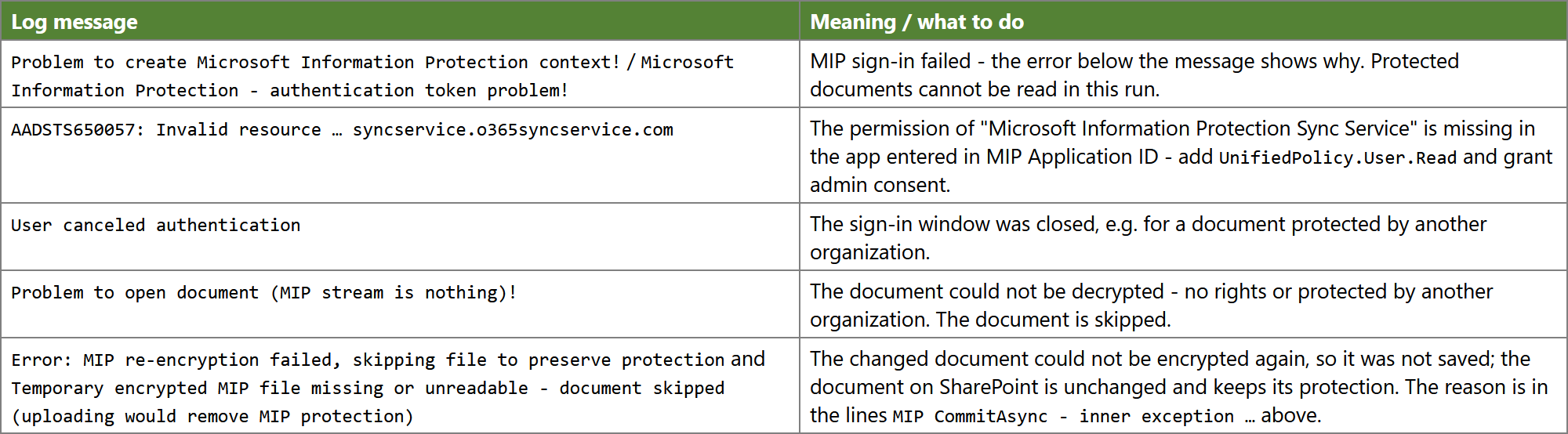
6. Still problems with permissions
If you continue to encounter permission-related errors when processing documents protected by Microsoft Information Protection (MIP), consider the following options:
Option 1: Use an Account with Sufficient Permissions
Sign in at the MIP authentication prompt using an account that has Co-Author or Co-Owner rights for the affected documents, or use the document owner's account.
Option 2: Adjust Permissions in Microsoft Purview
Ask your Microsoft Purview administrator to review the encryption settings of the affected sensitivity labels and grant the account used by ReplaceMagic the necessary permissions to open, edit, and save the documents.
Option 3: Enable the Azure RMS Super User Feature (Recommended for Bulk Processing)
For large-scale document processing, an administrator can enable the Azure Rights Management (RMS) super user feature and register the account used by ReplaceMagic as a super user.
Run the following PowerShell commands with the appropriate administrative privileges:
Connect-AipService
Enable-AipServiceSuperUserFeature
Add-AipServiceSuperUser -EmailAddress <ReplaceMagicAccount>
Replace <ReplaceMagicAccount> with the email address of the account used by ReplaceMagic.
The super user feature grants the designated account full access to content protected by Azure RMS within your organization's tenant, allowing ReplaceMagic to process documents that would otherwise be restricted by MIP encryption.
Important Notes:
- The super user feature applies only to documents protected by your own Microsoft 365 tenant. It does not override protection applied by external organizations.
- The account must still have the necessary SharePoint or file system permissions to access the documents.
- Because this feature grants elevated access to protected content, its use should be approved by your organization's security administrator.
- For security reasons, consider disabling the super user feature or removing the account from the super user list after bulk processing is complete.
Note: These steps address MIP encryption permissions. They do not resolve unrelated SharePoint access restrictions or authentication issues.
MIP and App-Only authentication. MIP can't be used with the authentication modes App-Only client secret and App-Only certificate; ReplaceMagic switches Use MIP off for them. SharePoint refuses to save a document with an encrypting sensitivity label when it comes from an App-Only connection (error The label that's applied to this item prevents it from being edited or deleted) - also when the app has the Azure Rights Management permission Content.SuperUser or is an AIP super user. Use Web Logon (modern authentication) for sites with protected documents. Documents without encryption can still be processed with App-Only.