SharePoint 1
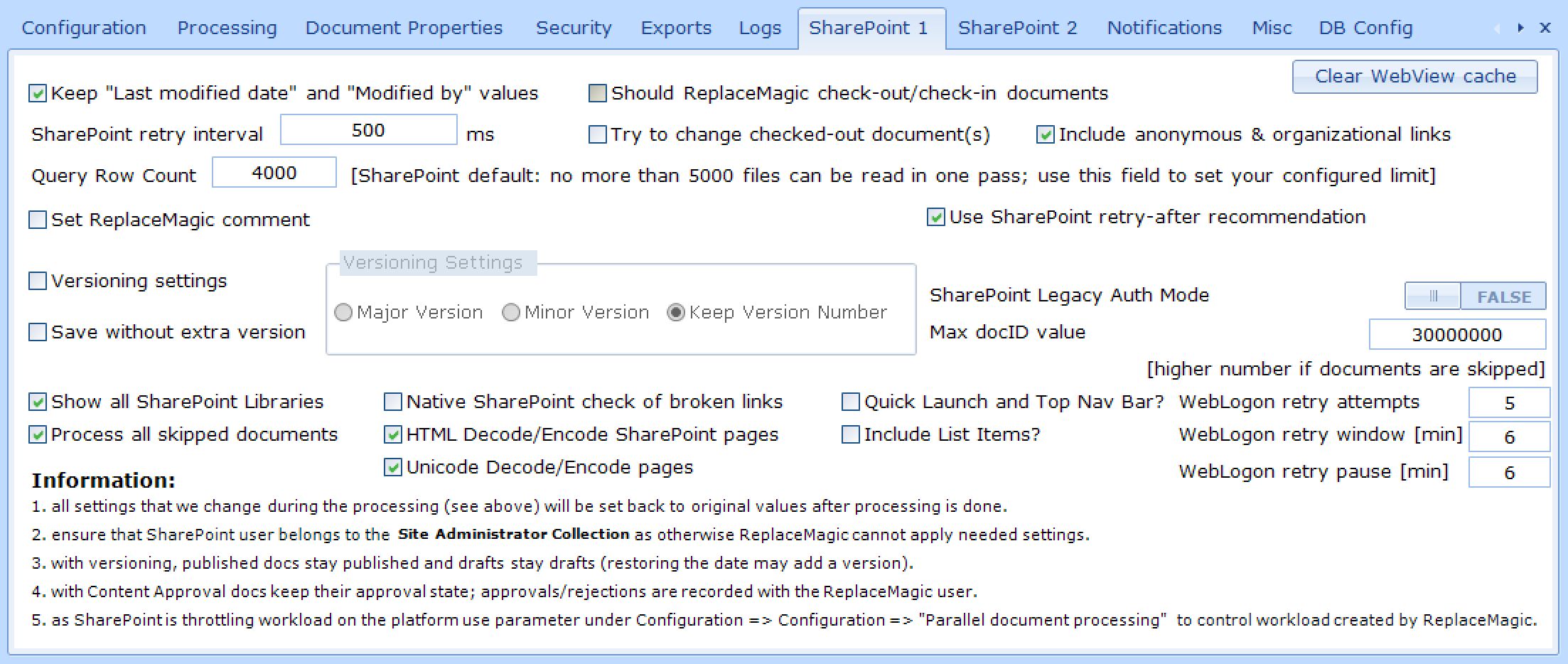
- Keep "Last modified date" and "Modified by" values => in case that you want to keep SharePoint properties you'll have to select this option. This will instruct ReplaceMagic to keep the last modified date and the name of the person who made the last change. If this is not done, after the replacement you'll see that the last modification date is changed to the date and time when ReplaceMagic made the change and that "Modified By" is changed to the user that you used to log in to SharePoint from ReplaceMagic.
Important remarks: - ReplaceMagic can keep the original SharePoint data only if the user used to log in to SharePoint from ReplaceMagic belongs to the Site Collection Administrators. This is a limitation of SharePoint.
- In case that you want to import previously scanned documents, the "Modified By" value cannot be set back to the original value and this field will be updated with the user data of the person running ReplaceMagic. In other words, if you want to keep the "Modified By" value do not use the import files functionality.
- Restoring the last modified date and "Modified By" is a change of the document: in libraries with versions it adds one version, also with "Keep Version Number" - unless "Save without extra version" is selected.
- For published documents (libraries with major and minor versions) and for approved or rejected documents (libraries with content approval) SharePoint sets the last modified date and "Modified By" to the time and account of publishing or approval, so these values cannot be kept. Draft and pending documents keep them. Details: "SharePoint remarks - Document Libraries configuration".
- Should ReplaceMagic check-out/check-in documents? - by selecting this option ReplaceMagic checks out every document it changes and checks it in after the replacement is done. While the document is checked out, other users cannot change it.
In the following libraries ReplaceMagic always checks documents out and in, regardless of this option: - libraries with major and minor (draft) versions,
- libraries with content approval,
- libraries with "Require documents to be checked out before they can be edited" (Require Check Out).
The option therefore has an effect only in libraries without these settings (no versioning, or major versions only):
- Clear WebView cache - WebView is used to login to SharePoint (popup appearing after trying to connect to SharePoint) and its cache can grow. To allow cache clear-up, this button is added.
- Try to change checked-out document(s) - this option matters only for documents that are already checked out when processing starts (by any user, including the account used by ReplaceMagic).
- Not selected: such documents appear in the list of not processed documents with the comment "Document checked-out by SOME_USERNAME and cannot be changed!". This gives you enough information to understand which user is blocking the document in case you want to contact that person. The documents stay unchanged and checked out.
- Selected: ReplaceMagic releases the existing check-out, changes the document and checks it in. After processing the document is no longer checked out. This works only if the user used by ReplaceMagic belongs to the Site Collection Administrators.
Please note: changes the check-out owner saved but did not check in may be overwritten, and the check-out owner may later overwrite the changes made by ReplaceMagic. When SharePoint does not allow the check-out to be released as it is (typically when the document has a published or approved version), ReplaceMagic releases it with a major check-in (minor check-in in libraries with minor versions) - in libraries with versions this adds one version. In libraries with content approval, when a user checks out an approved document, SharePoint changes its status to Pending, and such a document stays Pending after processing (an approved document that ReplaceMagic checks out itself stays Approved). If SharePoint does not allow the check-out to be released at all, the document is skipped and the reason is shown in the list of not processed documents. - Include anonymous and organizational links - by selecting this option, ReplaceMagic reads the sharing links of every scanned SharePoint document and shows them in the scan results, including links created with "Can review" and "Can't download" in the SharePoint Share dialog. The columns are described in "SharePoint sharing links in scan results".
The option is not selected by default because it sends additional requests to SharePoint: one request for each document that inherits its permissions from the library and one more for each document with its own permissions (shared documents); on large libraries this can make scanning slower and increases the risk of throttling. Sharing links are not read when Ultra fast scan is turned on - the link columns then show "n.a".
Keep in mind that exports of scanned documents prior to 2025.2 version will not work any more and that you will need to ensure that files grid*Layout.xml are deleted from C:\Users\YOUR_USER\AppData\roaming\ReplaceMagic, C:\Users\YOUR_USER\AppData\Local\ReplaceMagic and C:\ProgramData\ReplaceMagic - Query Row Check (ReplaceMagic default value: 4900, no more than 4900 files can be read in one pass; use this fields to set your configured limit)
Per default SharePoint is not allowing that more than 5000 list items are shown/selected. To go around this limitation you'll have to set this parameter specifying when should we merge selection results. This means, if default of 5000 documents is configured, ReplaceMagic will return list of documents in sets of 5000 and always append one set to previously read list of documents. This will allow that we can access also libraries with more than 5000 documents without any limits.
Btw. as this parameter is configurable please check with your SharePoint administrators to what value you should set this parameter!Keep content approval status? (retired from 2021.5) - in libraries with content approval ReplaceMagic automatically keeps the approval status (approved, rejected, pending, draft). Approvals and rejections are recorded again with the account used by ReplaceMagic, so for approved and rejected documents SharePoint sets the last modified date and "Modified By" to the time and account of that approval. - Keep published status? (retired from 2021.5) - in libraries with major and minor versions ReplaceMagic automatically keeps published documents published and drafts as drafts (with "Versioning settings" = Keep Version Number or Minor Version). With Keep Version Number a published document keeps its version number; SharePoint sets its last modified date and "Modified By" to the time and account of publishing.
- Versioning settings (Major Version / Minor Version / Keep Version Number) - defines how a document is checked in when ReplaceMagic checks it out. In libraries with major and minor versions, with content approval or with Require Check Out the selection is used even if "Versioning settings" is not selected; if no selection was ever made, Keep Version Number is used. In other libraries it is used only together with "Should ReplaceMagic check-out/check-in documents?". In libraries with major and minor versions:

To keep published documents published and drafts as drafts, use Keep Version Number.
In libraries with major versions only, Major Version and Minor Version have the same effect: SharePoint creates the next major version (e.g. 1.0 → 2.0; with "Keep "Last modified date" and "Modified by" values" one more version is added for restoring the date). With Keep Version Number the save itself does not create a new version.
- Save without extra version - restoring the last modified date and "Modified By" (option "Keep "Last modified date" and "Modified by" values") is a change of the document, so in libraries with versions it normally adds one version. With this option selected ReplaceMagic restores these values without an additional version:

The last modified date and "Modified By" are kept in both cases. The option has no effect on published, approved and rejected documents - SharePoint sets their values at publishing or approval (see "SharePoint remarks - Document Libraries configuration"). On older SharePoint servers that do not support saving without a new version, ReplaceMagic saves the values as if the option were not selected (one additional version) and the processing continues. - All SharePoint Libraries? - by setting this on ReplaceMagic will try to access all SharePoint locations. This means that we can change also system files (like .ASPX) so be extremely careful as you might damage SharePoint platform. Remark: in some cases SharePoint might not allow changes of some files. ReplaceMagic cannot overcome that limitation set by SharePoint.
- Set ReplaceMagic comment - per default after check-in/check-out, document publish or unpublish or document approval ReplaceMagic was putting entry in comment field. Now you can disable that ReplaceMagic stores comments or you can specify own text.
- Use SharePoint retry-after parameter - if you are throttled, SharePoint will send duration when processing cannot continue. By using this parameter (default: selected) ReplaceMagic will stop processing for period defined by SharePoint.
When SharePoint throttles a request (HTTP 429 or 503), the document being processed waits for the time SharePoint recommends (or for the configured time when this option is off) and the same step is repeated, up to 3 times; only then is the document skipped. At the same time, new documents are started only after the pause and, if Decrease parallelism is on, with fewer parallel documents. If SharePoint sends HTTP 503 without a recommended time, ReplaceMagic waits 120 seconds. Large runs that are throttled often take longer because of these waits, but fewer documents are skipped. - Throttling retry-after period - in case you do not want to use defined wait time by SharePoint you can overwrite this setting by using this parameter where you can enter period that ReplaceMagic should stop processing due to throttling. Default value: 120 seconds and this parameter is visible only when "Use SharePoint retry-after parameter" is not selected. If you do not want to wait (which is not recommended) uncheck "Use SharePoint retry-after parameter" and enter 0 for this parameter.
- HTML Decode/Encode SharePoint pages - use this setting if you have legacy SharePoint pages (like Enteprise Wiki) as content there is HTML encoded thus ReplaceMagic cannot find links (link which normally looks like <a href="some_URL">SomeText</a> will be stored like <a href="some_URK">SomeText</a>&. Use it with caution as wrong decision to use it might corrupt pages.
- Unicode Decode/Encode pages - use this setting if you expect to have some Unicode characters in your SharePoint/Web pages (for example, French letters). Without using this option saving can cause that Unicode characters are improperly converted leading to text corruption. Important: when this option is used some Unicode characters might be converted to corresponding HTML special characters notation which will be part of your pages. For example:
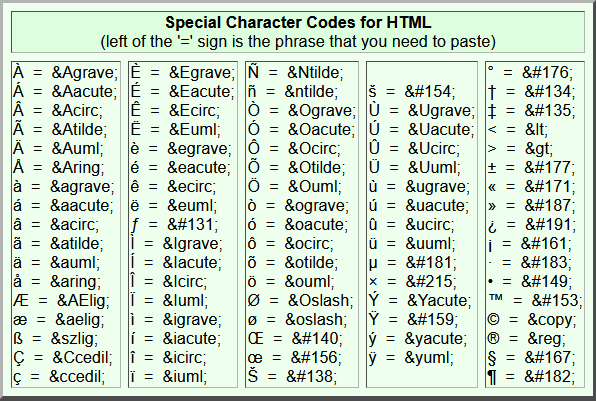
Source: https://www.ou.edu/research/electron/internet/special.shtml.
- SharePoint Legacy Auth Mode - SharePoint supports legacy and modern authentication mode. Depending on your configuration select correct value. Btw. this setting can be set also directly in form where you can enter SharePoint logon details.
- Max doc ID value (default: 30.000.000) - when ReplaceMagic is searching for max. docID this parameter will set up to which number search will go. Max. ID that SharePoint supports is around 30.000.000 thus this value. If in your document library have ID which are smaller to accelerate search you might decrease value of this parameter but to be on a save side you can leave it as it is.
- Process List Item, Quick Launch and Top Nav Bar? - ReplaceMagic can also make replacement in list item fields of value URL, quick launch and top navigation bar. If this is needed enable this parameter. In case that list item has attachment or you are scanning document libraries (they are also list items) processing of URLs in documents will have priority. To make changes of list item hyperlink fields do not run them with processing of documents in document libraries or list item attachments at the same time.
- Native SharePoint Broken Link Check - when you select this option, ReplaceMagic will use SharePoint Online's native functionality to check if document links are broken. This feature only supports SharePoint Online - on-premises versions are not compatible.
Performance Warning: this method can be very slow, as it requires a separate request to SharePoint for each individual link. These frequent requests may place a heavy load on SharePoint and could trigger Microsoft's throttling mechanisms, which would interrupt or completely stop the processing. Due to these performance risks, we do not recommend using this option. However, it is available for users who still wish to proceed.
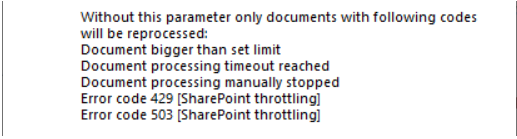
Scope Limitation: the broken link check only works for links that point to documents within the same SharePoint site where ReplaceMagic is connected. If a link points to a different SharePoint site, the check cannot be performed. This is because a different SharePoint context is required for each separate site, and ReplaceMagic does not have authentication or access for those other contexts. Allowing cross-site link checks would require support for an unlimited number of SharePoint contexts, which is not feasible from both technical and performance standpoints. - Process all skipped documents - by setting this parameter ReplaceMagic will prepare all skipped documents for reprocessing. Without this parameter only documents skipped with following code will be reprocessed:
- Quick Launch and Top Nav Bar - include Quick Launch and Top Nav Bar items. Remark: in some cases will not allow this type of changes as they might break navigation structure
- Include List Items - Setting this parameter ReplaceMagic will make changes in list item fields of URL type
- Include Doc Libraries also- Setting this parameter ReplaceMagic will make changes in Doc Libraries fields of URL type
- WebLogon retry attempts - How many times ReplaceMagic opens the Web Logon sign-in window again when SharePoint stops accepting the sign-in during a run. If none of the attempts succeeds, ReplaceMagic pauses the run and asks whether to sign in again or to stop the run (in a command-line/silent run the run is stopped).
- WebLogon retry window [min] - How many minutes each sign-in window stays open waiting for the user to sign in before it is closed and the attempt counts as failed.
- WebLogon pause window [min] - How many minutes ReplaceMagic waits between two sign-in attempts; 0 means the next attempt starts immediately.
Important:
- All settings changed by ReplaceMagic during processing will be set back to original values after processing is done.
- Documents that were checked out before processing and changed with "Try to change checked-out document(s)" stay checked in after processing. They cannot be checked out again in the name of the previous user.
- To be able to keep last modification date, author and editor, the user used by ReplaceMagic has to belong to the Site Collection Administrators. Otherwise we cannot make changes.
- Approval status, publishing status and "Versioning settings" require that documents are checked out and in. In libraries with content approval, with major and minor versions or with Require Check Out, ReplaceMagic does this automatically; in other libraries select "Should ReplaceMagic check-out/check-in documents?".