
Scan Office Documents for Broken Links with ReplaceMagic
Before doing document migration or getting understand which documents have broken hyperlinks, OLE object links, link sources or connections you will need to scan document drives or folders.
Simply enter folder or drive where your Office documents are and press Search button under Find Documents tab. ReplaceMagic will go through all folder and subfolder (if selected) and as an outcome you will get list of all found documents with number of hyperlinks, OLE object links, link sources and connections.
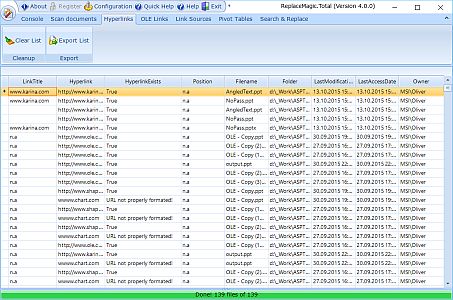
If you go to following tabs you will see list of found links with flag are they broken in found Excel, Word, PowerPoint, Visio or Project documenets.
If you want you can export findings in CSV, HTML, XLS or XLSX document format for further processing.
Also ReplaceMagic can check is each of link broken or not and you can see findings immediatelly after processing is finished.
Click HERE to go to the next step in the process → Analyse found documents
In case of any questions please do not hesitate to contact us.



What Scanning Does
Scanning crawls every document in the target location and catalogues every embedded link it finds, showing which links are currently valid and which are broken. The result is a complete inventory of your document estate's link health — covering all supported link types across all scanned files — without opening a single document manually.
Scan Locations Supported
- Local folders and drives
- Network shares (UNC paths such as \\server\share)
- Mapped network drives
- SharePoint Online (native API connection)
- SharePoint On-Premises (native API connection)
- Teams document libraries
- OneDrive for Business
What a Scan Finds
ReplaceMagic scans for every category of embedded reference that can break during a migration:
- Hyperlinks embedded in document text, shapes and images
- OLE object links connecting embedded objects to source files
- Link sources (workbook-to-workbook and document-to-document data connections)
- Power Query data source references in Excel
- PivotTable source references pointing to external data ranges or files
- VBA path references hard-coded in macros
- Header and footer embedded paths
Pre-Migration vs Post-Migration Scanning
Scanning is valuable at both ends of a migration project. Run a scan before the migration to establish a baseline and identify links that were already broken before any files were moved — this protects you from being accountable for pre-existing issues. Run a scan after the replacement run to verify that all targeted links were successfully updated and that no document was skipped. Comparing the two scan exports gives you a definitive sign-off report.
Scan Performance Tips
- Use Ultra Fast mode for inventory-only scans where you need a list of documents and link counts but do not yet need broken-link validation.
- Disable link validation if you only need to find and replace strings rather than check reachability — this significantly reduces scan time on large document sets.
- Increase the parallel processing thread count for local and network targets to make full use of available CPU cores and network bandwidth.
- For SharePoint Online targets, keep thread counts moderate to avoid throttling from the Microsoft API.


